Activity 6: Strengthen Your Passwords
Reusing passwords across multiple websites can put multiple accounts at risk. If one website is hacked and your password is exposed, attackers may try the same username and password combination on other websites.
Password managers, passkeys, and two-factor authentication (2FA) can help protect your accounts.
If you have any questions or get stuck, please ask the instructor for assistance.
Part 1: Check Your Password Habits
- Think of three online accounts that you use regularly.
- Without writing down or sharing your actual passwords, consider the following questions for each account:
- Do I use the same password on another website?
- Is my password a variation of another password I use?
- Does my password contain information that someone could easily find about me?
- Is my password long and difficult to guess?
- Does this account offer a password manager, passkey, or 2FA?
- Choose one account that you would like to make more secure.
Part 2: Explore Your Account’s Security Settings
- Go to the app or websites that you want to strengthen your password for.
- Open your account’s Security, Privacy, or Account Settings. websites and apps put them in different places, so if you’re having trouble finding it, ask your instructor, or if you are working thought this activity on your own you might want to ask your favourite GenAI tool where to find the settings for the website you’re on.
- Look for options such as:
- Change Password
- Passkey
- Two-Factor Authentication
- Multi-Factor Authentication
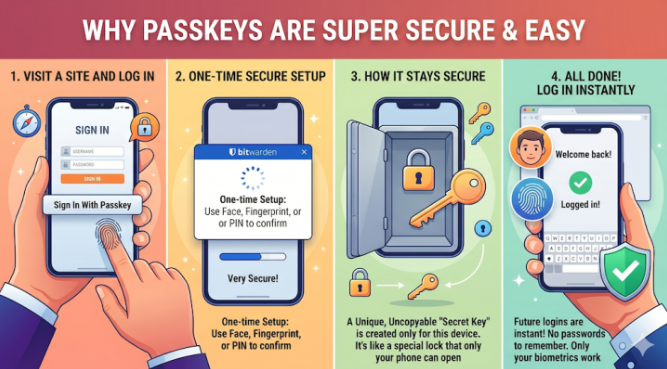
- If the website supports a passkey, consider setting one up.
- If the website does not support a passkey, check whether it supports two-factor authentication (2FA).
- If 2FA is available, follow the website’s instructions to enable it.
Part 3: Explore Using a Password Manager

- If you use both an iPhone and a Mac computer, consider using Apple’s built in password manager called Passwords.
- Saving your passwords and passkeys in the Apple password manager will allow you to access them on both your iPhone and Mac computer with ease.
- To open the Apple password manager on your MacBook, go to the Finder or File Manager, and look in your Applications folder for the Passwords app.
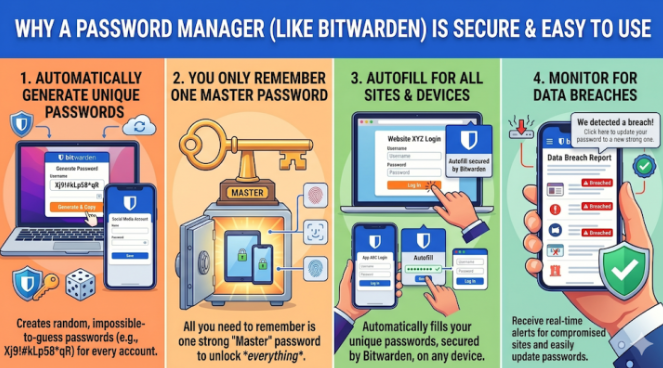
- Explore how a password manager can generate strong, unique passwords for your accounts.
- If you use a Windows computer then you should visit Bitwarden to learn more about using their high quality free password manager.
- You will need to install a Bitwarden plugin for your laptop web browser.
- Explore how a password manager can generate strong, unique passwords for your accounts.
- Notice that you only need to remember the password for your password manager rather than memorizing a different password for every website.
Reflection
- Did you discover that you reuse any passwords?
- Which of your accounts would be most important to protect with 2FA?
- Did your account offer a passkey?
- How could a password manager make it easier to use unique passwords?
Using a unique password for every account reduces the risk of one compromised password affecting multiple accounts. Passkeys and 2FA provide additional protection if someone obtains your password.