Switch to a Privacy-First Browser
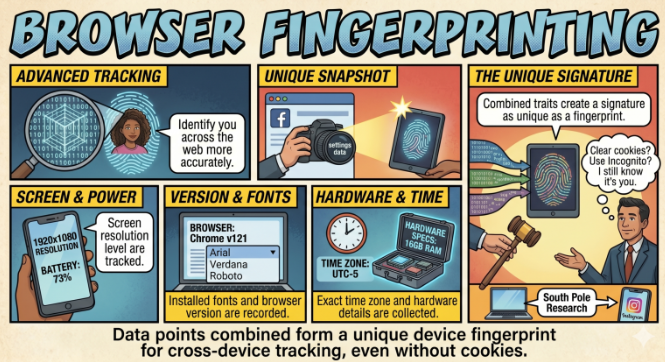
Standard browsers (like Chrome) are designed to facilitate tracking so that Google and others can target advertising more effectively and earn more money. Switching to a privacy-first browser can stop them from creating Browser Fingerprints for you by default, and reduce their ability to track you.
If you have any questions or get stuck, please ask the instructor for assistance.
Browsers
- Open your current web browser and visit a website for one of both of the following privacy-focused browsers:
- Both Brave & Firefox include built-in protections that “randomize” your browser fingerprint
- Download and install either Brave & Firefox
- Open the new browser once the installation is complete
Must-Have Extensions
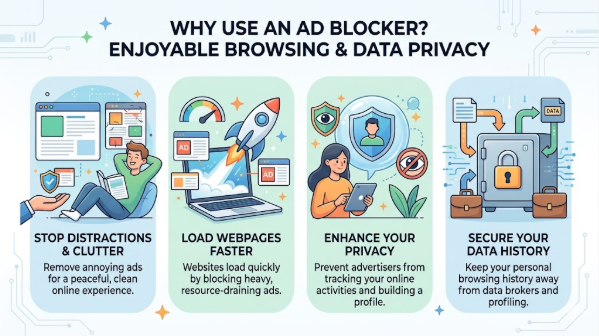
Install an ad blocker extension such as uBlock Origin or Privacy Badger. You can still download these even if you’re using a different browser than Brave or Firefox.
If you chose Brave
- Open Brave.
- Go to the Chrome Web Store. NOTE: Brave is built on Chromium, so it can use many extensions from the Chrome Web Store. You will still be installing and using the extension in Brave, not Chrome.
- Search for uBlock Origin or Privacy Badger.
- Select the extension you want to install.
- Click Add to Chrome.
- Follow the on-screen instructions to complete the installation.
- Once the extension is installed, click the Extensions icon in the Brave toolbar.
- Find your newly installed extension and click the pin icon to add it to your toolbar.
If you chose Firefox
- Open Firefox.
- Go to the Firefox Add-ons website.
- Search for uBlock Origin or Privacy Badger.
- Select the extension you want to install.
- Click Add to Firefox.
- Follow the on-screen instructions to complete the installation.
- Once the extension is installed, click the Extensions icon in the Firefox toolbar.
- Find your newly installed extension and pin it to your toolbar so that you can easily access it.
See Your Extension in Action
Now let’s see what your new privacy tool is actually doing.
- Visit a website that contains advertisements, such as a news or magazine website.
- Click the uBlock Origin or Privacy Badger icon in your browser toolbar.

- Look at the information provided by the extension. Depending on which extension you installed, you may be able to see the number of requests, advertisements, or trackers that have been blocked.
- Visit two or three different websites and check the extension on each website.
- Record the number of blocked requests or trackers that you see.
- Compare the results between the websites.
These tools block “trackers” from loading at all, which not only protects your data but also makes your web pages load significantly faster