Navigating Files and Directories
Now that we’ve discussed file and directory paths, let’s open our terminals and jump into some Unix commands to start navigating through files and folders. An invaluable tip for Unix commands (and most coding languages), is to know that the internet has a ton of documentation on what commands do and how to solve issues. When playing around with these commands, it’s highly recommended to use a search engine to help you!
Opening Your Terminal
PC Users: After having downloaded Git for Windows, search for “Git for Windows” in the search bar next to the Windows icon at the bottom of your computer screen. Click on the Git program, and your terminal will open.
Mac Users: There are two option to pull up the Mac terminal
- 1) Press
commandspacebarto open a search tab, and then type “terminal”. Click on the terminal application for it to open. - 2) Open your “Applications” folder, and search for “Terminal”. Click to open.
pwd
- Stands for “print working directory”, and will display the full path of where you currently are on your machine. Right now, I’m at the root directory of my computer, which means I’m at the highest (functional) point of the directory hirearchy, which is
/Users/nickrochlin

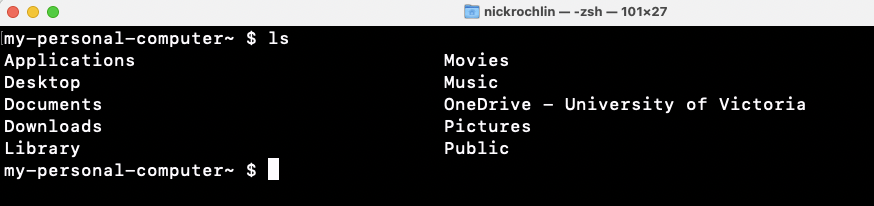
ls
- Lists the contents of a directory. Some systems will have different colours for directories and files, but as a rule of thumb, files will always end in a file extension (ie.
.docx,.ppt,.txt, etc). As you can see, my root directory only has sub-directories, and no files.
cd
- Changes the directory you are in.
- Syntax:
cd path/to/directory
Let’s use this command to move to our Desktop directory:

cd ..
- Moves you up one directory
If I use this command, I’ll be moved back to my root directory. If you’re ever unsure of what directory you’re in, you can always use the pwd command to double check, although the information in the command prompt can also be helpful in figuring this out.

Now let’s move back to our Desktop directory by re-entering the command cd Desktop. The files on your Desktop will be different than mine, but if I use the ls command here, you will see that I have the shell-lesson-data directory that I downloaded in the Pre-Workshop Activities section, as well as a file called hello.txt.

If I’m interested in seeing what is in the hello.txt file, I can use the cat command to display the content. While this example is being shown on a .txt file, the cat command works other types of files as well. (If you’re interested, feel free to look into the other files that cat works on in a search engine). cat
- Prints the whole contents of a file (does not work on directories)
- Syntax:
cat file-name

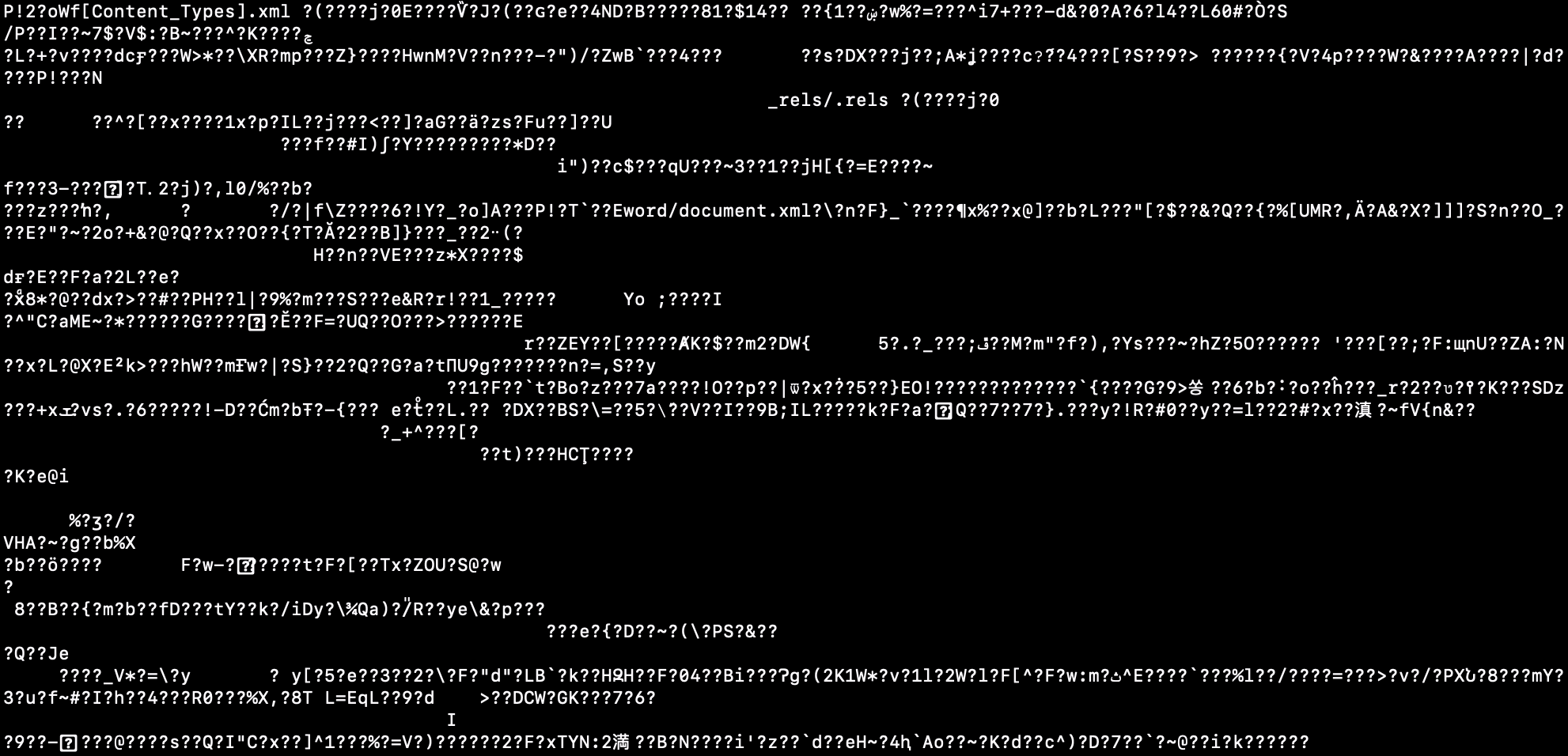
It should also be noted that the cat command can only be used on plain text files, and not file formats like Word documents (.docx) or Excel documents (.xlsx). This is the output of using the cat command on a .docx file:
Going into the details of file formats is beyond the scope of this lesson, but to learn more about files formats, you can read more about them here.
Absolute vs. Relative Paths
As you start playing around in the Unix Shell, it’s good to know that there are two types of paths that you can use: absolute and relative paths.
Absolute Paths:
- Includes the entire path from the root directory
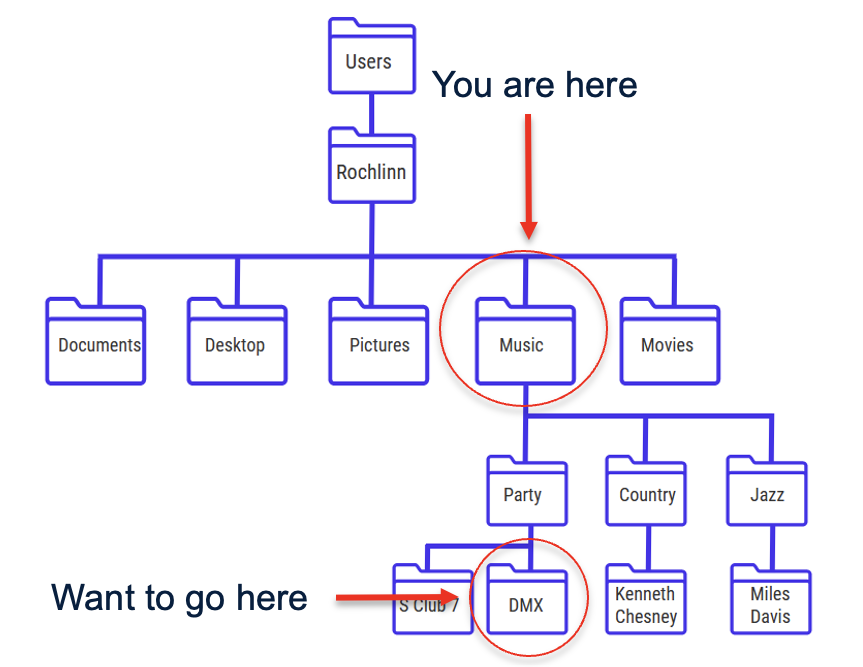
- The absolute path for the movement below would be:
cd /Users/Rochlinn/Music/Party/DMX
Relative Path:
- Includes the path relative to where you are
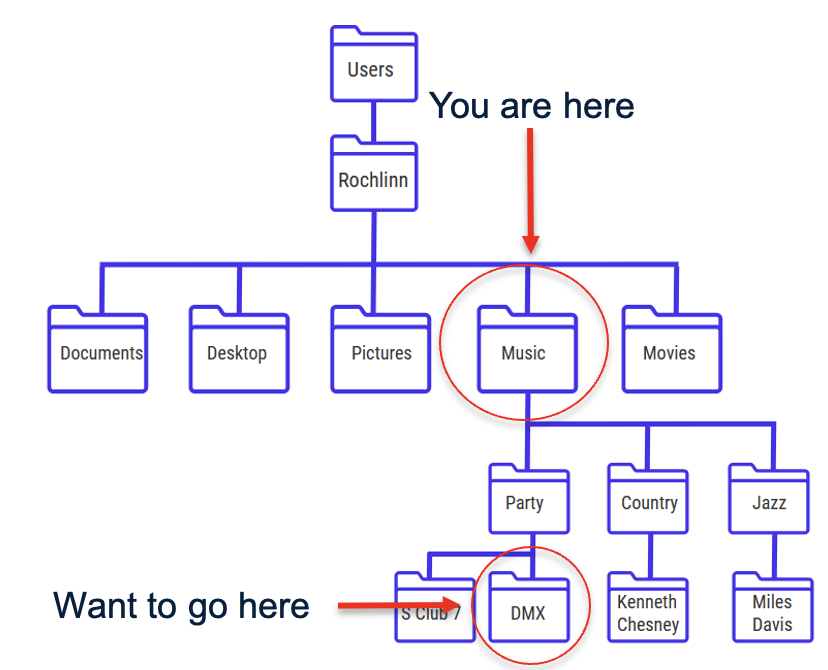
- The relative path for the movement below would be:
cd /Party/DMX
It should be noted that relative paths only work going down the hierarchy, and not up. In this example, the relative path assumes /Users/Rochlinn/Music
Exercise 2
Move to the
shell-lesson-datadirectory that you downloaded at the beginning of the session (which should be in yourDesktopdirectory), and, explore the files and > directories with the following prompts:
- What is the full path to the file
methane.pdb?- Who is the author of
methane.pdb?- What command would you use to move from the
alkanesdirectory to theshell-lesson-datadirectory?- What is the last line of the file
NENE01729A.txt?