Installation and Setup
A. Step 1: Download QualCoder
- Go to the official QualCoder GitHub repository
- Scroll down to the latest version (version 3.8.2)
- Download the appropriate file for your operating system:
- Windows: .exe file (e.g. QualCoder_3_8_2_setup.exe file)
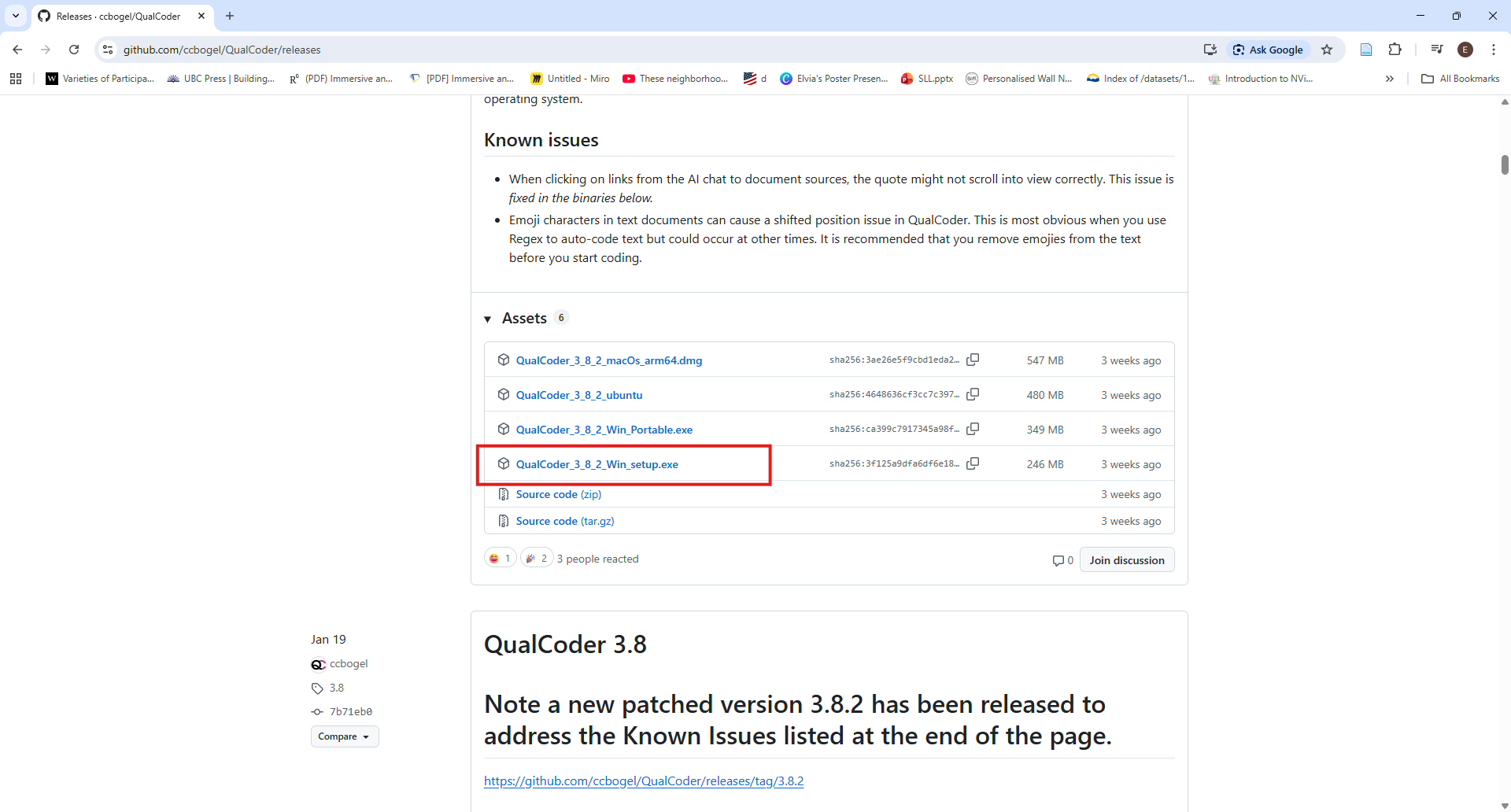
- Windows: .exe file (e.g. QualCoder_3_8_2_setup.exe file)
B. Step 2: Install the Software
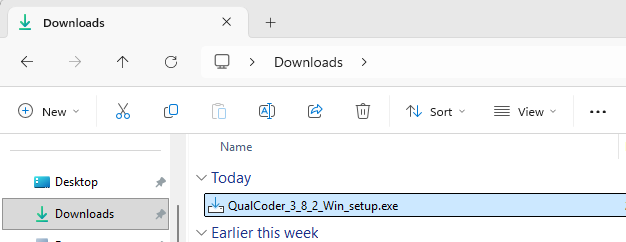
- Double-click the downloaded .exe file
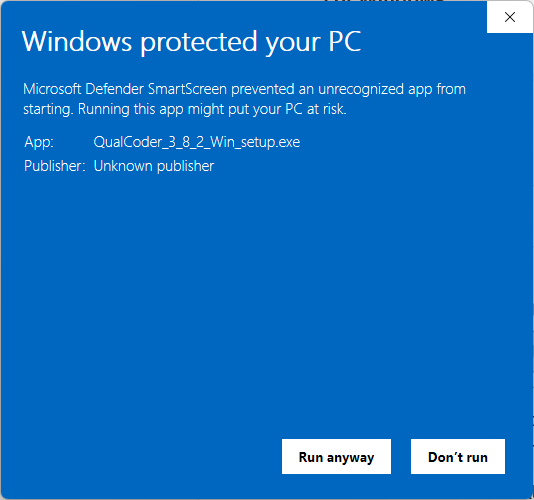
- A “Windows protected your PC” message may appear. This is a standard security warning for applications downloaded from the internet.
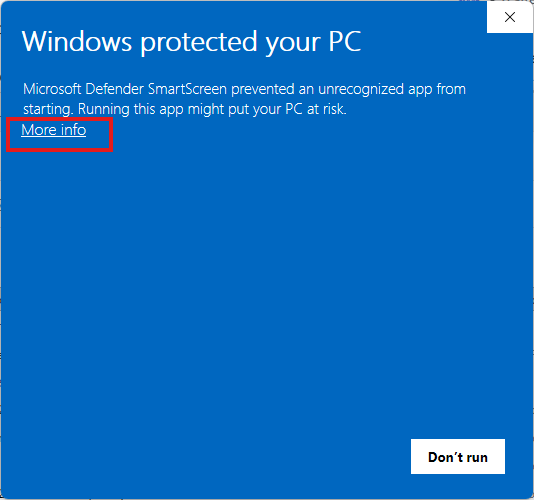
- Click “More info”, then click “Run anyway”
- Follow the installation prompts
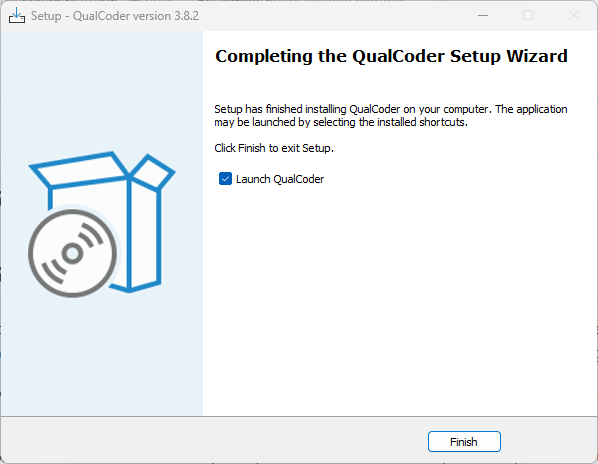
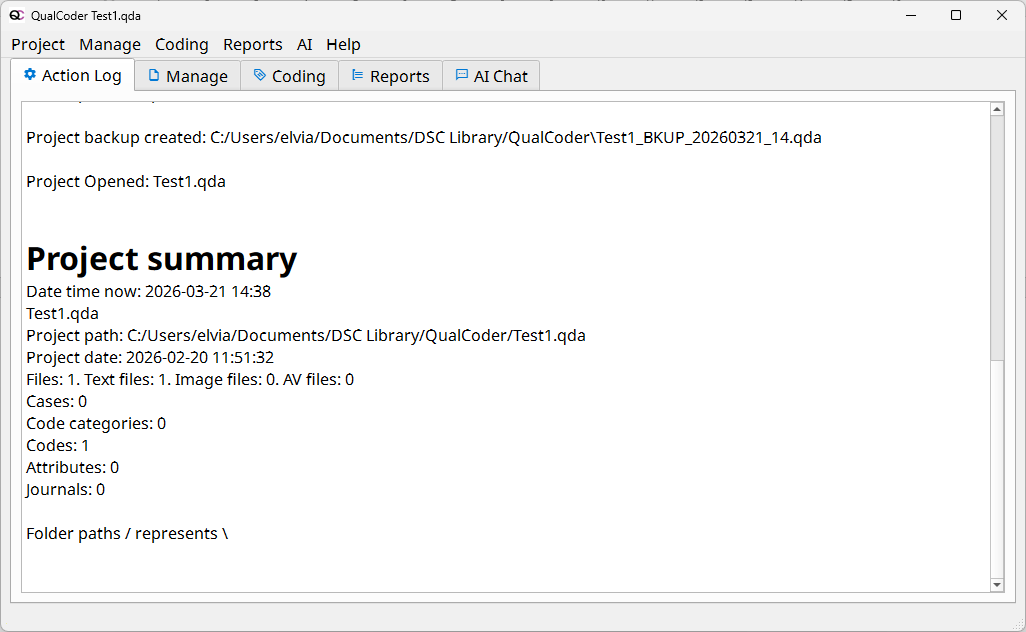
- Once installed, launch QualCoder
C. Settings in QualCoder
Before starting your analysis, it is helpful to configure a few basic settings in QualCoder. These settings ensure that your work is properly tracked and that the interface is comfortable to use.\
- Set the Coder Name. QualCoder assigns a coder name to every code you apply. This is useful for tracking who performed the coding.
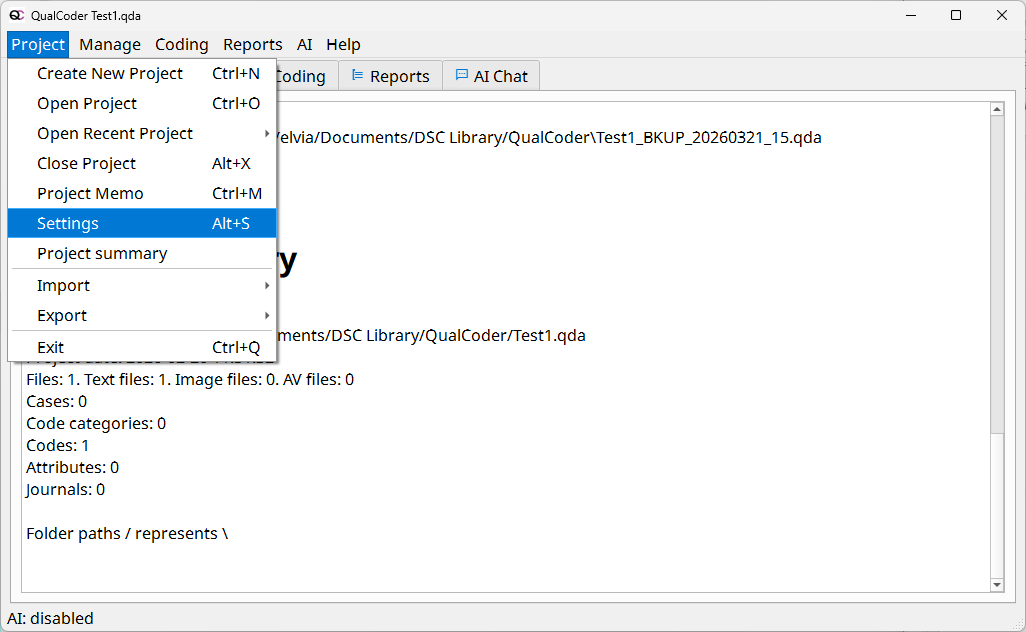
- Go to Project > Settings
- In the Current coder field, click on the Change button (beside Current Coder).
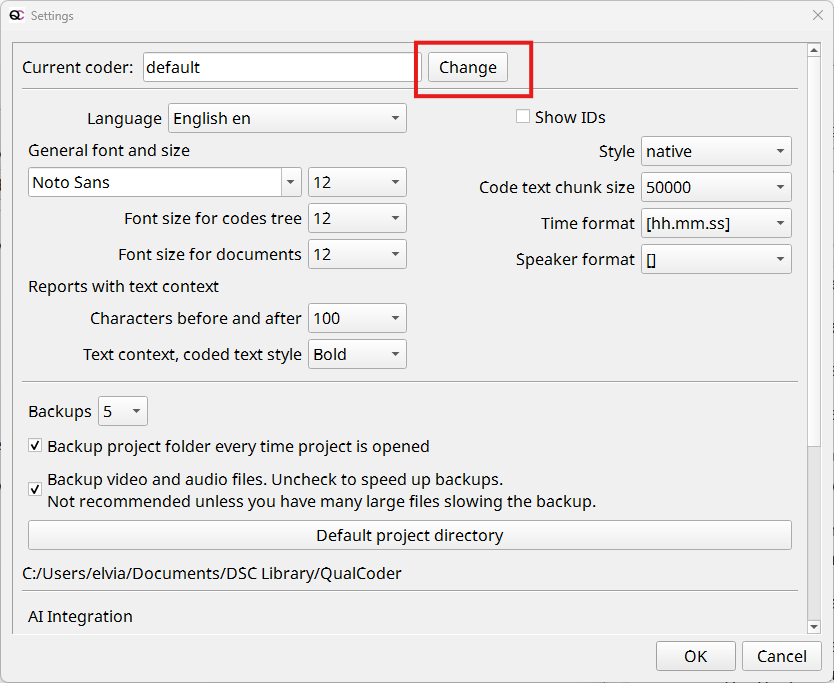
- In the Coders dialog box:
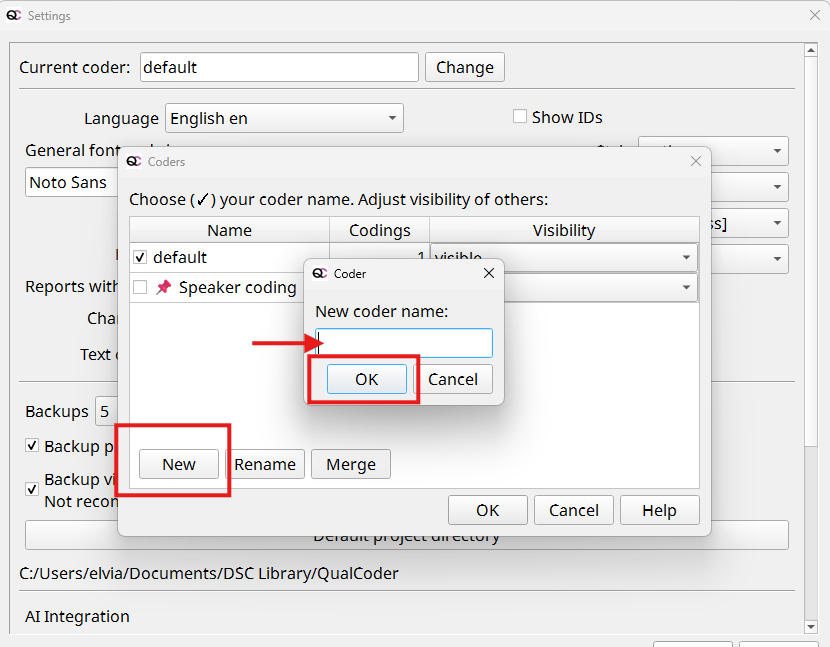
- Click New
- Enter your name or initial
- Click OK
- Select your name or initial in the Coder dialogue box and click OK
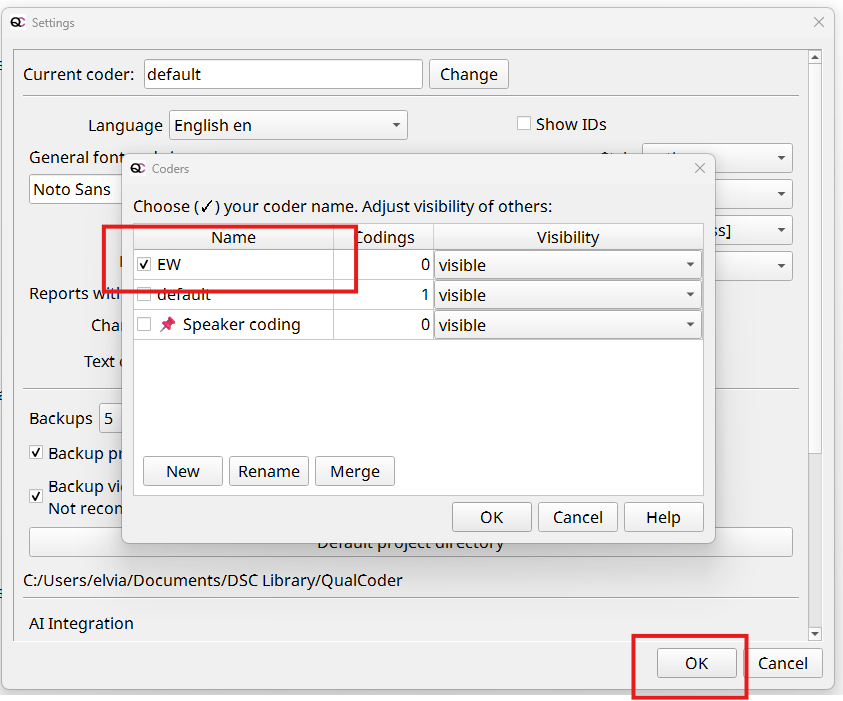
- Go to Project > Settings
- Configure Language and Appearance. You can adjust the interface to suit your preferences.
- Options:
- Select your preferred language (e.g., English, Spanish, French, German, Italian)
- Adjust font type and size for better readability
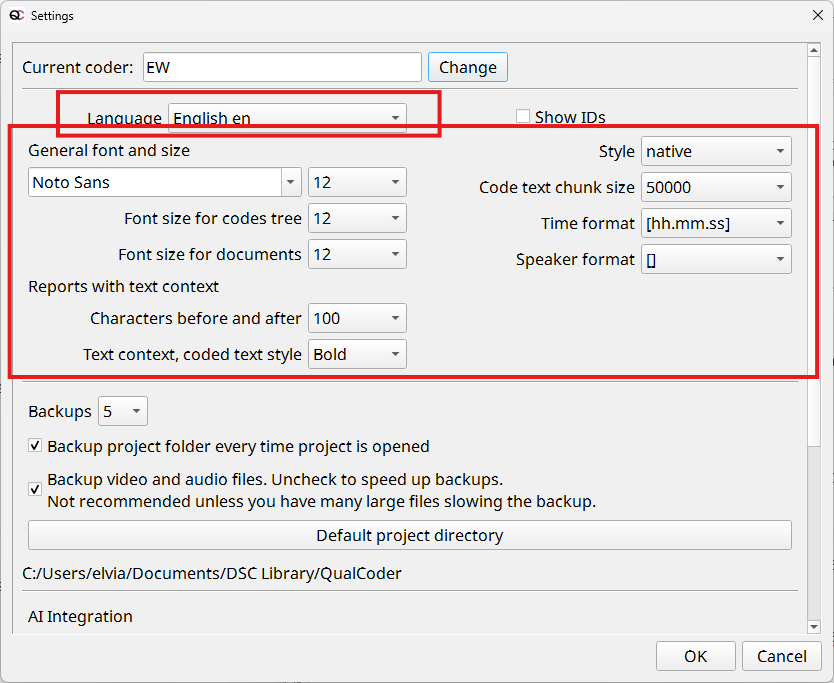
- Options:
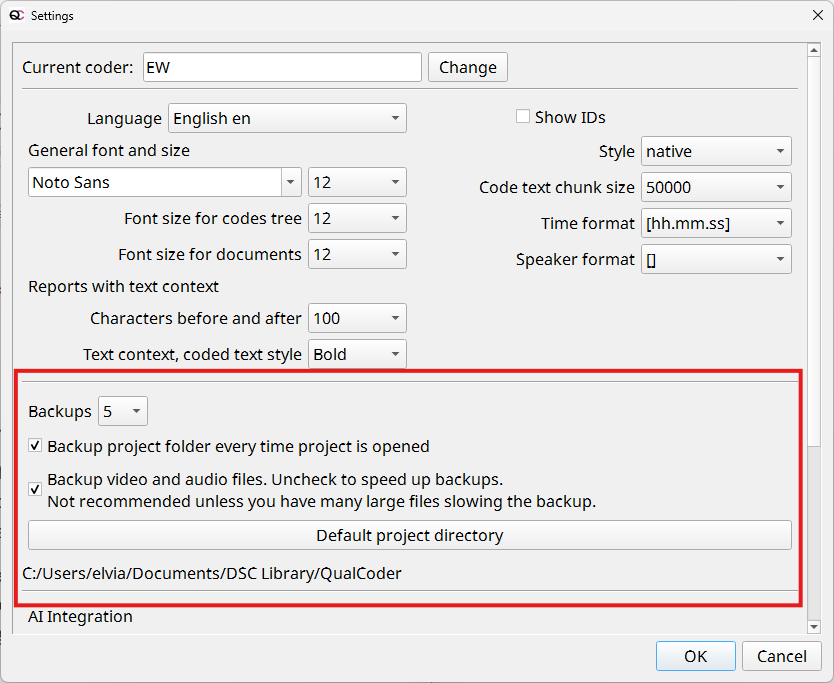
- Manage Backups and Performance. These settings help ensure your project runs smoothly and your data is protected.
- Backups. Ensure that backups are enabled in Settings to prevent data loss
- Project Directory. Choose a folder on your local drive for storing projects
- Important: Avoid running QualCoder projects directly from cloud-synced folders (e.g., OneDrive or Dropbox), as this may corrupt the database.
- Default Fragment Size (for large files) If your computer is slower or your files are large:
- Reduce the fragment size (default: 50,000 characters)
- This allows files to load in smaller sections