Find a Pre-Designed Zine Template on Canva
In this exercise, you will create a zine using Canva. If you have any questions or get stuck, please ask your instructor for assistance.
- Create a Canva account at canva.com
- Click on the Create a design button on the top right of the screen.
- In the search field, type the word “zine” and click on one of the size options (likely all the same).
- This will bring up a blank page with a list of zine templates on the left side.
- Choose a template:
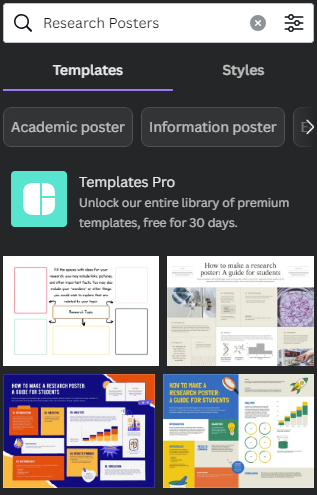
- You should have templates showing in the left sidebar with a Search field at the top. You can scroll down through the options until you see one that interests you. If you mouse over the cover image of one and hold your mouse pointer there, a preview of the other page layouts in that template will scroll by if available.
- Templates that are only available with a Pro account will have a small crown icon in the lower right corner. (At the time of creating this workshop, most of the zine templates were free.)
- Once you find a template you like, click on it. If it has multiple pages, it will ask if you want to apply the other pages. We recommend you click the “apply both/all pages” button. You can discard the extra pages when you are finished designing your zine. (Alternatively, you can just add individual page layouts one at a time. Clicking on one will add it to your current blank page.)
- Customize the template:
- Head over to the activity linked below to add elements to your zine.
NEXT STEP: Customize Your Zine Activity OPTIONAL: Create a One-Page Fold and Cute Mini-Zine Activity