Make a “Fact or Fiction” Quiz Game in 10 Minutes!
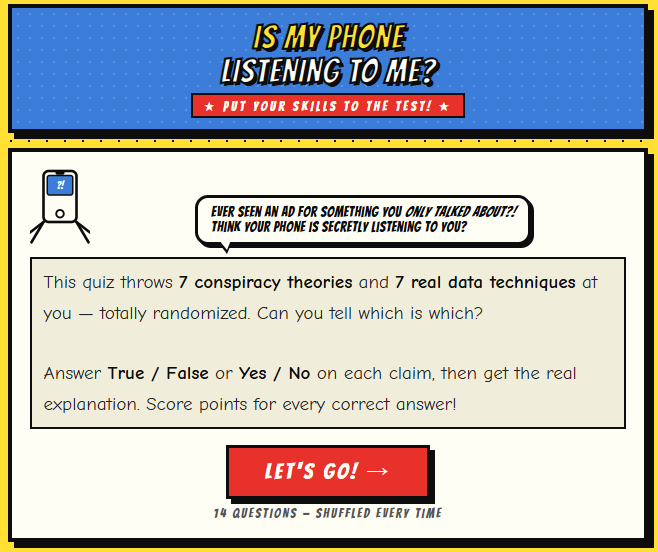
Quiz games are a fun way to help learners test their knowledge and separate myths from reality. In this activity you will use a Generative AI tool to build a true/false quiz game from a web page of your choosing. Here is an example of a finished quiz built this way: Is My Phone Listening To Me? Quiz, which was created from this blog post: Is Your Smartphone Listening to You?.
Important: For this activity we strongly encourage you to choose a web page on a topic you know well, rather than using the sample blog post above. Why? Because Generative AI tools sometimes get facts wrong or oversimplify them, and if you know the topic, you can fact check the quiz questions in real time as you build your game. This is a great habit to develop whenever you use AI to create educational content!
If you get stuck, please ask your instructor for assistance, and don’t forget to have fun!
Step 1
- You can use any Generative AI tool for this activity, but for coding I’d recommend using Anthropic’s Claude, as the free version creates more visually attractive web applications by default. Alternatively, you can use Google Gemini (which comes free with Gmail), ChatGPT, Microsoft Copilot, or any other GenAI tool that you are familiar with.
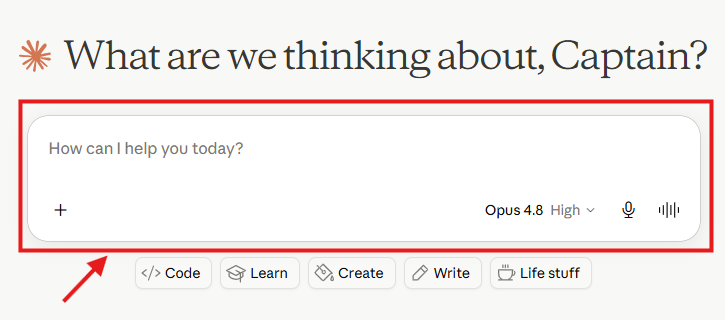
Step 2
- Find a web page on a topic you know well and copy its web address (URL) from your browser’s address bar. Good candidates include a blog post you’ve written, a Wikipedia article on your favourite hobby, or an article from your field of study.
- If you can’t think of one, you can use the sample article for this activity: Is Your Smartphone Listening to You? — but remember, using a page you know well means you can spot any errors the AI makes.
Step 3
- First we’ll ask the AI to generate quiz questions, and in a later step we’ll turn the best of them into a game.
- Copy and paste the following prompt into your GenAI tool, replace the URL with the web page you chose in Step 2, and then press Enter on your keyboard:
Please read the content of this web page:
https://richmccue.com/2026/05/26/is-your-smartphone-listening-to-you/

Then create 14 true/false quiz questions based on it: 7 based on myths or
misconceptions the page debunks, and 7 based on facts or real techniques the page
describes. For each question, provide:

- The question text
- The correct answer (True or False)
- A short explanation drawn from the article
Step 4
- Once the AI has generated the 14 questions, copy and paste them into a word processor such as Microsoft Word or Google Docs. Reviewing the questions in a word processor makes it much easier to carefully verify each one for appropriateness and accuracy than scrolling through a chat window.
- Open your source web page in another browser tab and check every question, answer, and explanation against the original article:
- Is each “fact” question actually supported by the article?
- Are the “myth” questions really presented as myths in the article?
- Are the explanations accurate, or has the AI added details that aren’t in the source?
- Delete the 4 weakest questions so that you are left with your 10 best. Weaker questions might be ones that are inaccurate, too easy, not germain to your learning objectivs, or too similar to another question.
Step 5
- Now we’ll feed your 10 good questions into a prompt to create the web app. Copy and paste the following prompt into your GenAI tool, paste your 10 verified questions (with their answers and explanations) at the end where indicated, and then press Enter on your keyboard:
I'd like you to create a single-file HTML quiz game using the 10 true/false questions
I've pasted below. The game should:

- Shuffle the questions into a random order every time the game is played
- Show one question at a time with True / False answer buttons
- After the player answers, show whether they were right, plus the short
  explanation provided with each question
- Keep a running score, and show a final score screen at the end with a
  "Play Again" button
- If the player scores more than 7 out of 10, congratulate them and let
  them download a fun "badge" image (generated with the HTML canvas) as a PNG
- Have a fun, colourful retro arcade visual style
- Work well on both phones and laptops
- Be a single self-contained HTML file with no external dependencies, so
  it can be hosted on GitHub Pages

Here are the 10 questions, answers, and explanations:
[paste your 10 verified questions here*
Step 6
- Next we need to wait a minute or two for the AI to read the web page and create the HTML file for you. While it works, you can watch it write the code.
- If you are using Claude, it will display a preview of the webpage on the right side of the screen once it generates the file. Before downloading, you can review the preview and provide additional prompts if you would like to make any changes
- Once it’s finished, click the Download button and make note of where you saved the file on your laptop (usually your Downloads folder).

Step 7
- Find the HTML file you just downloaded and double-click on it to open it in your web browser.
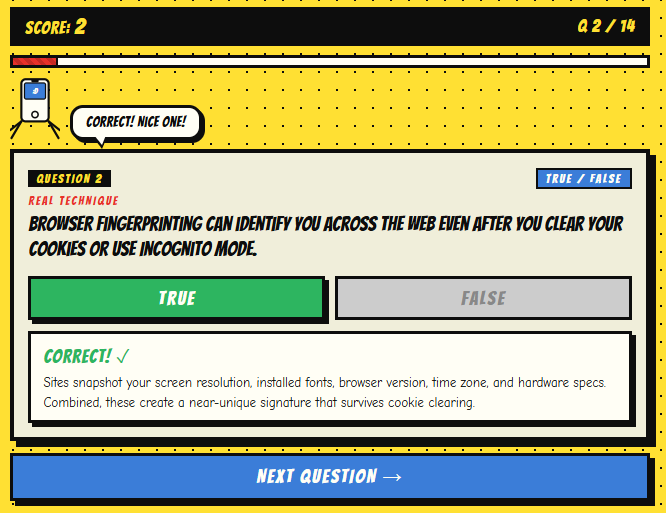
- Click through a few questions to make sure the game works: the questions should be shuffled, the True/False buttons should respond, and your score should update (see image below for example).
Step 8
- If you find a question that is wrong or misleading, go back to your AI chat and ask it to fix that specific question. For example:
Question about [topic] is not accurate. The article actually says [what the article
says]. Please correct that question and its explanation, and give me the updated file.
Step 9
- Once your questions are accurate, you can customize your game with follow-up prompts. Try one or more of these, or invent your own:
Change the visual theme to a Pacific Northwest colour palette with ocean blues and
forest greens.
Add a 15 second countdown timer to each question, and award bonus points for fast
correct answers.
Add sound effects using the Web Audio API: a happy chime for correct answers and a
gentle buzz for incorrect ones, with a mute button.
- After each change, download the new file, open it in your browser, and re-test it, including a quick re-check that the questions are still accurate. Small, incremental changes are much easier to test and fix than one giant request.
Step 10 (Optional)
- If you’d like to share your quiz with the world, you can host it for free on GitHub Pages. If you completed the GitHub Pages activity earlier in this workshop, upload your HTML file to your repository and it will be live at your GitHub Pages address in a minute or two.
- If you haven’t set up GitHub Pages yet, ask your instructor or see the Additional Resources page for a guide.
Congratulations on completing this Quiz Game vibe code project! You’ve not only built a working game, you’ve also practised one of the most important skills for working with Generative AI: verifying its output against a trusted source. Here’s the finished example again for inspiration: Is My Phone Listening To Me? Quiz.