Introduction Template
During this activity, you will be able to create a Powtoon short animation to make an introduction video, overview of sidebar navigation, customize text, customize backgrounds, learn to add characters.
Activity 1: Creating an Introduction template
- Create a Powtoon account by selecting sign up and adding your email address.
- Next you will receive an email confirmation to confirm your account Click confirm and continue, you will then get another email with instructions to create your first video.
- Under the Start a new Powtoon withclick choose a template
- On the right-hand side select the filter button and then click free and click show templates.
- Note if you just signed up for Powtoon you likely have a Pro trial, but for the sake of this activity and accessibility; we will work only with Free features.
- Select teacher intro template, if you do not see it right away you can search it in the right search bar.
- Click Edit in studio
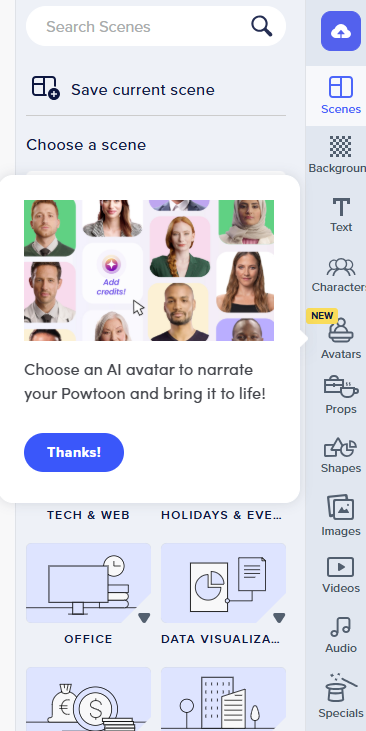
Overview editing features sidebar
- Include a photo of right sidebar with descriptions Customize your template: Text
- First select the text and replace the (your name) with your name. I will be replacing all text so that the animation is in French replacing Hello with Bonjour and replacing my name is with Je m’appelle. To select text you must just click on the textbox.
- If you want to add more text, select text (feature sidebar) and select **add subtitle
- Next write something, I will write Welcome grade 1’s).
- Now we will change the color of our text by double-clicking that textbox or clicking and selecting the settings button.
- Under the settings you can change the font, colour effects etc.
- First change the color to white by clicking color
- Next lets change the effects of text by selecting effect
- Enter effects is now selected, change how the welcome grade 1’s comes in by changing it to writing hand 01
- Select exit effect and click left Background
- Let’s swap the background by selecting the following image located at the top left side.
- On the right side, we will select a new background image, click on business and professions, under the search bar write classroom and select one of the options without the pro book.
- When you click the background, a message will pop up saying video is longer than slide, just click trim video to make it the same length. Adding Characters:
- First click slide 2 and do not worry about changing the writing or background, you can go back and do that at the end by repeating the previous steps. Instead lets add characters.
- We will add another character, by selecting Characters and clicking Omnis
- Place your cursor over a character you like and select it based on a feeling such as Happy and drag and drop it onto your slide.